
4. Getting Started
The smallest thing that proves the gateway works: one APIM instance, one API pointing at a public demo backend, one call through it with a subscription key — done three ways, then deleted.
This page is deliberately throwaway. Hard-coded names, no variables, no remote state, no pipeline. Everything production-shaped lives in Deployment.
Read this before you start. Creating a classic-tier APIM instance takes tens of minutes ⚠️ verify current figures — you will not be watching a progress bar for thirty seconds. Two ways to avoid a coffee break: use the Consumption tier (near-instant, but no developer portal and no VNet), or a v2 tier (minutes rather than tens of minutes). The examples below use Developer because it has the full feature set and the lowest classic price; substitute
Consumptionif you want speed and don't need the portal. Either way, start the create first and read the rest of this page while it runs.
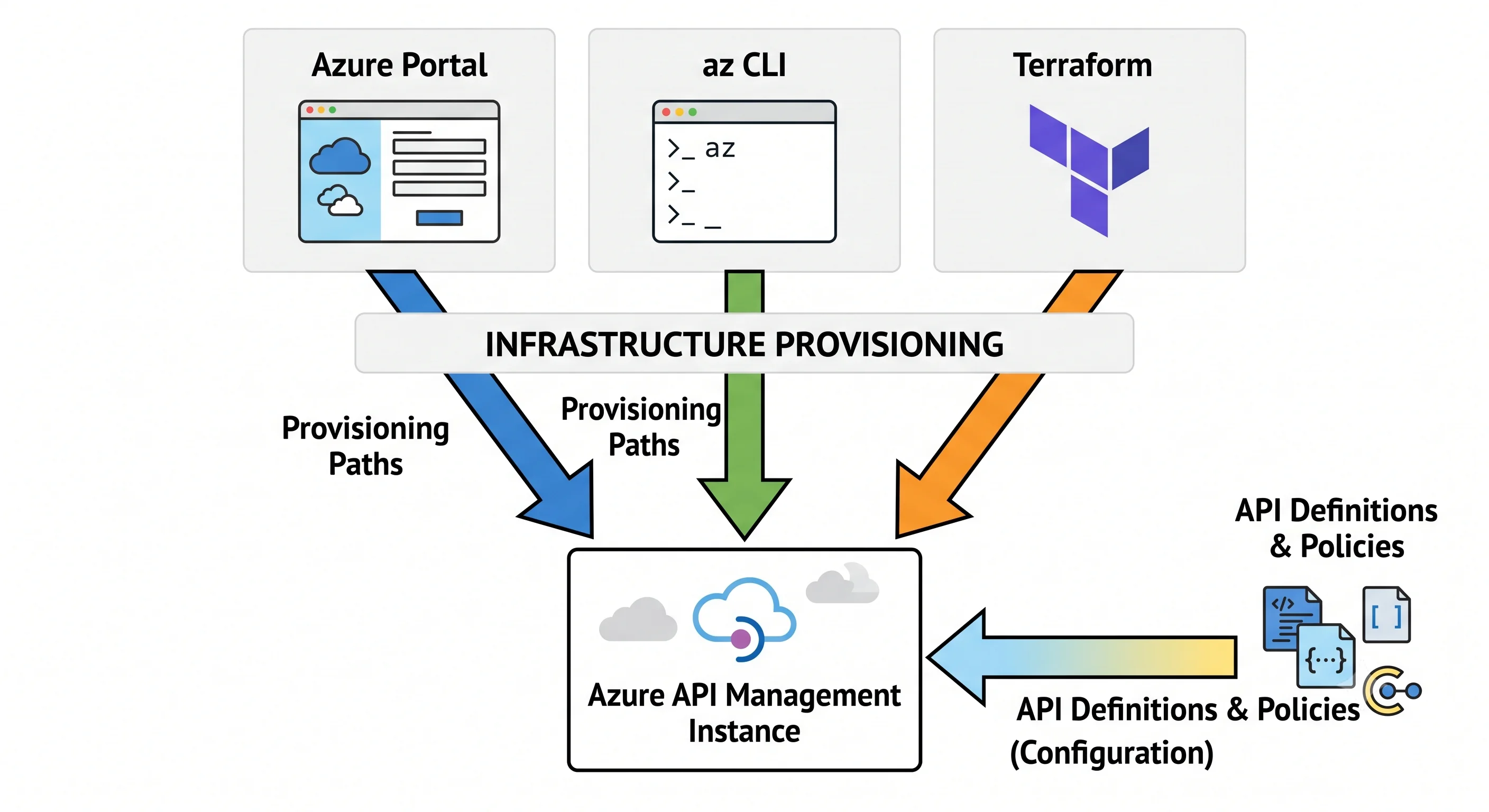
What we're building
client ──(subscription key)──▶ apim-demo-<unique>.azure-api.net/demo/todos/1
                                        │
                                        └──▶ https://jsonplaceholder.typicode.com/todos/1
An API named demo whose backend is a public JSON test service, exposed as one GET operation, and
one policy that proves the pipeline ran. No auth beyond the subscription key, because this is
hello-world.
1. Azure Portal
The click-path, kept short because the portal's navigation changes often:
- Create a resource → API Management → new resource group
rg-apim-demo, a globally unique name, a region, your email as publisher, pricing tier Developer. Create, and leave it. - When it finishes, open the instance → APIs blade → HTTP (or "Add API → HTTP") → display
name
Demo, web service URLhttps://jsonplaceholder.typicode.com, API URL suffixdemo. - On the new API → Add operation → display name
Get todo, methodGET, URL/todos/{id}. - Select that operation → Test tab → set
idto1→ Send. You should get a JSON todo back, with the subscription key filled in for you by the portal. - Optional, to see the pipeline: on the API's Design tab, open the policy editor (the
</>icon on Outbound processing) and add<set-header name="x-demo" exists-action="override"> <value>hello</value></set-header>inside<outbound>, after<base />. Re-test and look at the response headers.
That last step is the one worth doing. Everything else you'll automate; the policy editor is where you'll spend your actual time.
2. Azure CLI (az)
Copy-pasteable. Pick a unique name first — the gateway hostname is global DNS.
# --- variables ---------------------------------------------------------------
RG=rg-apim-demo
LOC=uksouth
APIM=apim-demo-$RANDOM$RANDOM          # must be globally unique
EMAIL="you@example.com"

# --- throwaway resource group ------------------------------------------------
az group create -n $RG -l $LOC

# --- the instance (Developer tier; this is the slow part) --------------------
# Drop --no-wait if you'd rather block. Swap Developer for Consumption to go fast.
az apim create \
  --name $APIM \
  --resource-group $RG \
  --location $LOC \
  --publisher-name "Demo Co" \
  --publisher-email "$EMAIL" \
  --sku-name Developer \
  --no-wait

# --- poll until it's ready ---------------------------------------------------
az apim show -n $APIM -g $RG --query provisioningState -o tsv
# repeat until it prints: Succeeded

# --- one API ------------------------------------------------------------------
az apim api create \
  --resource-group $RG --service-name $APIM \
  --api-id demo --display-name "Demo" \
  --path demo --protocols https \
  --service-url https://jsonplaceholder.typicode.com

# --- one operation ------------------------------------------------------------
az apim api operation create \
  --resource-group $RG --service-name $APIM \
  --api-id demo --operation-id get-todo \
  --display-name "Get todo" --method GET \
  --url-template "/todos/{id}" \
  --template-parameters name=id required=true type=string

# --- a subscription key to call it with --------------------------------------
# The built-in all-APIs subscription is the quickest route for a demo.
KEY=$(az apim subscription list -g $RG -n $APIM \
      --query "[?scope contains 'apis'] | [0].primaryKey" -o tsv 2>/dev/null)

# If that comes back empty, list what exists and take a key from one of them:
az apim subscription list -g $RG -n $APIM -o table

# --- call it ------------------------------------------------------------------
curl -i "https://$APIM.azure-api.net/demo/todos/1" \
     -H "Ocp-Apim-Subscription-Key: $KEY"
Two things to notice in that output. Without the header you get 401 — that's the subscription
check running before any policy of yours. With it you get the backend's JSON, plus APIM's own
response headers. That 401 is the entire "subscription key" concept in one observation.
PowerShell note: APIM is not a service where a PowerShell-first shop is especially likely — the
az CLI and Terraform dominate here, and serious configuration work uses the APIOps tooling in
Deployment rather than either shell. The Az.ApiManagement module exists
(New-AzApiManagement, New-AzApiManagementApi) if your organisation standardises on it.
3. Terraform (minimal)
The smallest possible version. The parameterised, production-shaped module is in Deployment — this one hard-codes everything on purpose.
terraform {
  required_providers {
    azurerm = {
      source  = "hashicorp/azurerm"
      version = "~> 4.0"
    }
  }
}

provider "azurerm" {
  features {}
}

resource "azurerm_resource_group" "demo" {
  name     = "rg-apim-demo"
  location = "uksouth"
}

resource "azurerm_api_management" "demo" {
  name                = "apim-demo-changeme-0001" # globally unique
  resource_group_name = azurerm_resource_group.demo.name
  location            = azurerm_resource_group.demo.location
  publisher_name      = "Demo Co"
  publisher_email     = "you@example.com"
  sku_name            = "Developer_1" # <tier>_<units>

  # Expect this resource to take tens of minutes. Raise the timeout, not your blood pressure.
  timeouts {
    create = "90m"
    update = "90m"
    delete = "90m"
  }
}

resource "azurerm_api_management_api" "demo" {
  name                = "demo"
  resource_group_name = azurerm_resource_group.demo.name
  api_management_name = azurerm_api_management.demo.name
  revision            = "1"
  display_name        = "Demo"
  path                = "demo"
  protocols           = ["https"]
  service_url         = "https://jsonplaceholder.typicode.com"
}

resource "azurerm_api_management_api_operation" "get_todo" {
  operation_id        = "get-todo"
  api_name            = azurerm_api_management_api.demo.name
  api_management_name = azurerm_api_management.demo.name
  resource_group_name = azurerm_resource_group.demo.name
  display_name        = "Get todo"
  method              = "GET"
  url_template        = "/todos/{id}"

  template_parameter {
    name     = "id"
    required = true
    type     = "string"
  }
}

# One policy, so you can see the pipeline do something.
resource "azurerm_api_management_api_policy" "demo" {
  api_name            = azurerm_api_management_api.demo.name
  api_management_name = azurerm_api_management.demo.name
  resource_group_name = azurerm_resource_group.demo.name

  xml_content = <<XML
<policies>
  <inbound><base /></inbound>
  <backend><base /></backend>
  <outbound>
    <base />
    <set-header name="x-demo" exists-action="override">
      <value>hello</value>
    </set-header>
  </outbound>
  <on-error><base /></on-error>
</policies>
XML
}

output "gateway_url" {
  value = azurerm_api_management.demo.gateway_url
}
terraform init
terraform plan
terraform applyNote the sku_name format — Developer_1, Standard_2, Premium_3: tier and unit count in one
string, which is where most first-time azurerm APIM errors come from. And note the explicit
timeouts block: the provider's default create timeout is not always generous enough for a classic
tier, and a timeout mid-create leaves you with a real instance that Terraform doesn't know about.
On v2 tiers in Terraform: sku_name values for the v2 tiers (StandardV2_1 and friends) are
supported in recent azurerm versions ⚠️ verify current support and exact strings for your provider
version; if a v2-only feature isn't covered, that's what the azapi provider is for — see
Deployment.
What just happened
Whichever path you took, you created one ARM resource (the service) and then three child ARM resources (an API, an operation, a policy). That's the concept from Architecture made concrete: API configuration is infrastructure here. The Terraform state file contains your policy XML.
Try these three one-minute experiments before tearing it down — each one teaches something the docs take a page to say:
- Call without the key.
401. Subscription resolution happens before your policies. - Call
/demo/todos/notanumber. It goes through. APIM only validates what you tell it to — addvalidate-parametersor an OpenAPI schema and it stops. - Add
<rate-limit calls="3" renewal-period="60" />to the API's inbound policy (after<base />) and call four times. The fourth returns429. That's the whole traffic-control story in three lines.
Teardown
Delete the resource group — one command, and the cleanest teardown Azure gives you. There is no AWS equivalent of "delete this container and everything in it goes," and it's worth appreciating once.
az group delete -n rg-apim-demo --yes --no-wait# Terraform equivalent
terraform destroyOne APIM-specific catch. The instance is soft-deleted, not gone: its globally unique name stays reserved for a retention period, so re-creating with the same name fails ⚠️ verify the current retention window. Purge it if you need the name back:
az apim deletedservice list -o table
az apim deletedservice purge --service-name <name> --location <location>
Put that in your notes now — it will otherwise cost you twenty confused minutes the first time a pipeline re-creates an instance.
Next: Deployment →
← Back to the Azure API Management overview · ← Previous: Architecture