
3. Architecture
The machinery most tutorials skip: what actually happens when you press Create, where your data physically travels on a disk write, which permission system governs which half of the service, and the specific ways a VM fails.
What happens when you create a VM
A az vm create is not one operation. Tracing it end to end explains most of the errors you'll ever
see.
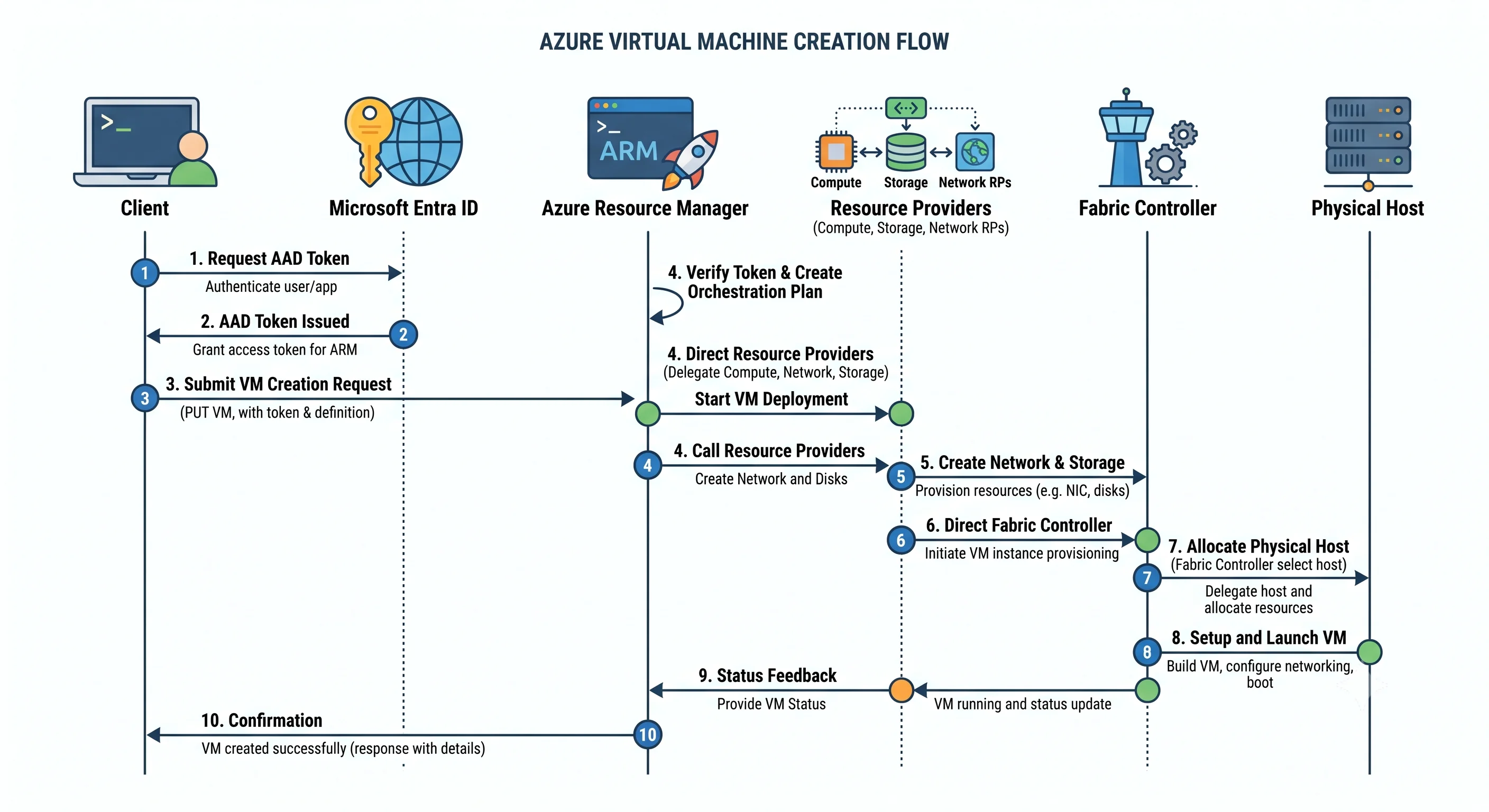
- Your client authenticates to Microsoft Entra ID and gets a token. The portal,
az, Terraform, and Bicep all do exactly this — they're all clients of the same API (see Azure Resource Manager). - The request hits ARM at
management.azure.comas aPUTon the resource ID/subscriptions/…/resourceGroups/…/providers/Microsoft.Compute/virtualMachines/vm-app-prod-01. - ARM authorises it against your Azure RBAC role assignments at that scope, then evaluates Azure Policy. A deny policy stops the deployment here, before anything is created — which is why policy failures look different from permission failures in the activity log.
- ARM dispatches to the resource providers.
Microsoft.Networkcreates the NIC and public IP,Microsoft.Computecreates the disks from the image, and the VM resource itself is created last because it references the others. ARM works out this dependency order from the references in the template — this is why a Terraform or Bicep file doesn't need explicit ordering most of the time. - The Compute Resource Provider asks the fabric controller for a placement. This is where allocation happens: the fabric must find a physical host in the requested region — and zone, if you asked for one — that has the right hardware for the size, free capacity, and compatibility with any placement group or dedicated host constraint. If it can't, you get an allocation failure, and no amount of retrying the same request in the same second fixes it.
- The host provisions the VM. The OS disk is attached from managed storage, the virtual NIC is plugged into the VNet's software-defined network, and the hypervisor boots the guest.
- The guest agent starts (
waagenton Linux, the Windows Guest Agent on Windows), reports Ready back to the control plane, and applies provisioning settings — hostname, the admin user, SSH keys, and any cloud-init or custom data. - Extensions install, in sequence. The Azure Monitor Agent, custom scripts, and anything else you declared. Each is a separate child-resource deployment and each can fail independently — a VM in Succeeded state with a failed extension is common and easy to miss.
Two consequences worth holding onto. First, provisioning state and application state are different things: ARM reporting Succeeded means the resource exists, not that your app is up. Second, a failed create leaves resources behind. If step 6 fails, the NIC, the disks, and the public IP from step 4 already exist and still bill. Terraform will usually clean up; a failed portal create frequently won't.
Control plane vs. data plane
Azure's split is sharper than AWS's and this is where it bites hardest — with a twist unique to VMs.
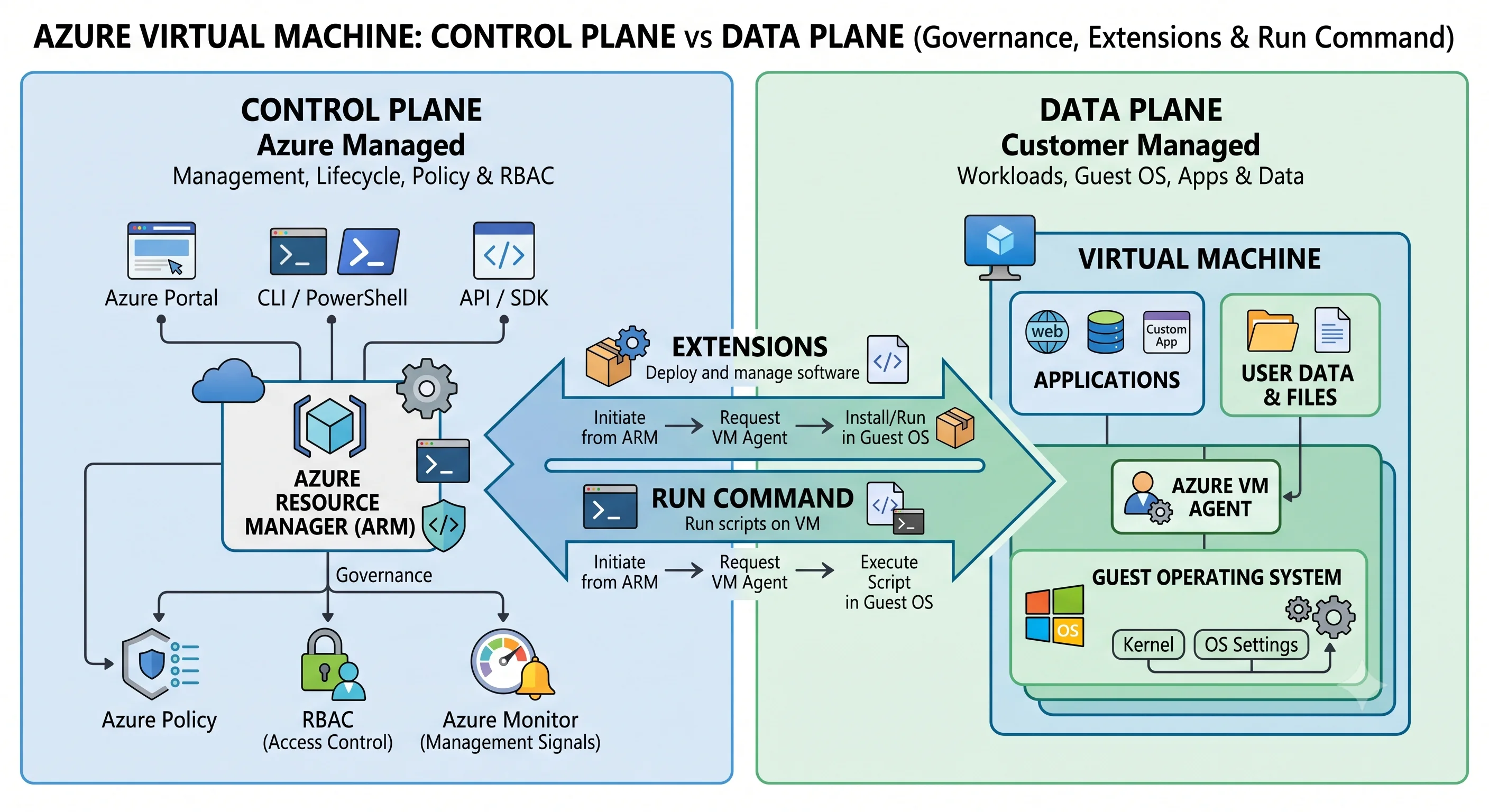
The control plane is ARM. It governs the VM as a resource: create, resize, start, stop, deallocate, attach a disk, install an extension, read the configuration. Authorisation is Azure RBAC at a scope, with roles like Virtual Machine Contributor, Contributor, and Owner.
The data plane is the guest operating system. It governs what's inside: the filesystem, the processes, the application. Authorisation is the OS's own — SSH keys, a local Administrator account, domain credentials — and, if you enable it, Microsoft Entra login with the Azure RBAC roles Virtual Machine Administrator Login and Virtual Machine User Login.
Here is the twist that makes VMs different from every other Azure service:
On a VM, control-plane access is effectively data-plane access. Anyone who can install an extension or invoke Run Command can execute arbitrary code inside the guest as root or SYSTEM — without any SSH key, without any inbound network path, and without touching the guest's own authentication at all.
Virtual Machine Contributor sounds like an infrastructure-only role. It is not. It is remote code
execution on every VM in its scope. This is the single most important sentence on this page, and it
is a favourite interview question because most people get it backwards — they assume, correctly for
storage and Key Vault, that control plane and data plane are separated, and then apply that instinct
to VMs where the extension mechanism deliberately bridges them.
Three practical consequences:
- Scope
Virtual Machine Contributornarrowly — resource group at most, never subscription-wide as a convenience. - Audit extension and Run Command operations in the activity log. They're the quietest path to a compromised guest.
- Deny-assignments or Azure Policy can restrict which extension types may be installed. Worth doing in a regulated environment.
The disk I/O path
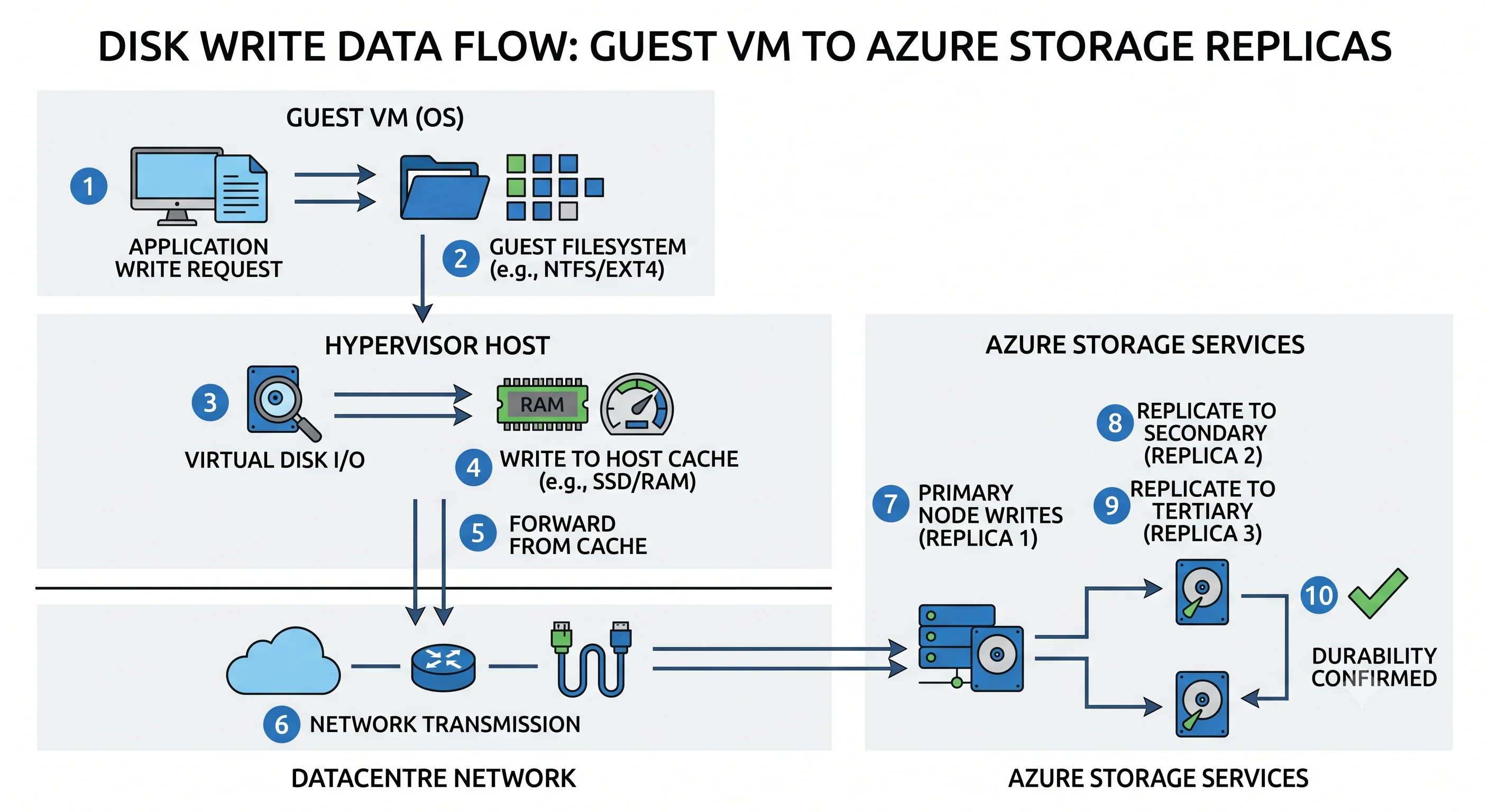
When your application writes a byte to a data disk, that byte does not go to a disk in the machine.
- The guest issues a block write to what it sees as a SCSI or NVMe device.
- The hypervisor's storage stack intercepts it. If host caching is
ReadWrite, the write may be acknowledged from the host's local SSD cache before travelling further. - Otherwise the write crosses the datacentre network to Azure Storage, where the managed disk actually lives.
- Azure Storage writes it to three replicas within the region — a synchronous, quorum-committed write — before acknowledging.
- The acknowledgement travels back up.
Four things follow directly, and they explain most VM performance incidents:
Disk latency is network latency. A remote managed disk is a network hop away. Premium SSD gets you single-digit milliseconds; Ultra Disk gets sub-millisecond. This is also why the temp disk and ephemeral OS disk are so much faster — they're genuinely local, skipping steps 3 to 5 entirely, and equally why they're wiped when the VM moves hosts.
Your disk is already triple-replicated, and that is not a backup. The three replicas protect
against hardware failure. They replicate your rm -rf faithfully and instantly. Backup is
Azure Backup, and it's a separate decision.
There are two ceilings and the lower one wins. The disk SKU has an IOPS/throughput limit, and so does the VM size (separately for cached and uncached traffic). Attaching a P30 to a size capped below P30's throughput wastes the disk; putting a P4 on a large VM wastes the VM. Check both.
Caching is a correctness decision, not just a speed one. ReadOnly caching on a read-heavy data
disk is close to free performance. ReadWrite caching on a disk holding a database transaction log
can violate the write-ordering guarantees the database depends on — which is why vendors specify
None for log disks. The default ReadWrite on the OS disk is fine because the OS expects it.
Scaling
A VM has two axes and they behave very differently.
Vertical — change the size. Straightforward within a hardware family: the VM restarts and comes back larger. Crossing families or generations usually requires the target hardware to exist in the current cluster; if it doesn't, the VM must be deallocated first so the fabric can place it elsewhere. The ceiling is the largest size available in your region, and it's a hard one. Vertical scaling always costs downtime — this is not an AWS-versus-Azure difference, it's physics.
Horizontal — add instances. This is what scale sets exist for. Autoscale rules react to metrics (CPU percentage, memory via the agent, queue depth) or a schedule, adding and removing instances. Three things people get wrong:
- The metric arrives late. Platform metrics have a lag measured in minutes, and instance boot takes minutes more. Autoscale is not a response to a traffic spike; it's a response to a traffic trend. Design a floor that can absorb the spike while the scale-out happens.
- Scale-out is bounded by quota. Autoscale will silently stop at your subscription's regional vCPU quota for that VM family. The symptom is "it stopped scaling", not an obvious error.
- Scale-in kills instances. Connections get dropped unless you've configured a termination notification and your application drains. Scale-in policies (default, NewestVM, OldestVM) decide which instance goes.
Failure modes
The specific ways VMs go wrong, in rough order of how often you'll meet them.
Allocation failure. The fabric can't find a host with your requested size in the requested region/zone. Most common on GPU and large memory sizes, on Spot, in constrained regions, and when a proximity placement group or dedicated host narrows the search. It happens on start as well as on create — a deallocated VM has released its hardware and must be re-placed. Mitigations: try a different zone, a different size within the family, a different region, or use a capacity reservation if the workload must be able to start on demand.
Quota exhaustion. Different from allocation failure and often confused with it. Quota is an accounting limit on your subscription (regional vCPUs, and per-family vCPUs), not a statement about physical capacity. The error text differs; the fix is a quota increase request, which is usually fast. See Production for the scopes each quota is counted at.
Guest OS failure. The VM is Running from Azure's point of view, but the guest is wedged, out of disk, or panicking. Azure can't see this — that's the IaaS bargain. Boot diagnostics (serial console output and a screenshot) is the tool, and it should be enabled on every VM; enabling it after the failure is too late.
Extension failure. The VM provisions fine, but the Azure Monitor Agent or a custom script fails. The VM's provisioning state stays Succeeded while the extension's is Failed, and monitoring quietly doesn't exist. Check extension status explicitly in any deployment pipeline.
Planned maintenance. Azure patches its hosts continuously. Most updates use live migration with a pause of a few seconds and no reboot. Some require a reboot, announced in advance via a maintenance window you can self-service within. Scheduled Events through IMDS gives the guest advance notice; polling it is how a well-behaved application drains connections first.
Unplanned host failure. The physical host dies and Azure restarts your VM on a new host — a reboot from your point of view, with the temp disk and any ephemeral OS disk gone. Availability sets and zones exist to ensure your other instances aren't on that same host or in that same building.
Zone or region outage. A single-zone VM is down for the duration. This is the failure that availability sets do not protect against and zones do — the distinction the SLA tiers encode.
Spot eviction. ~30 seconds' notice via Scheduled Events, then the VM is deallocated or deleted per your eviction policy. Entirely by design; the mitigation is checkpointing and idempotent work, not retries.
Network misconfiguration. Overwhelmingly the most common "the VM is broken" ticket, and overwhelmingly not a VM problem. Two NSGs in the path (subnet and NIC) with only one of them updated; a Standard public IP with no allowing NSG rule; a route table sending traffic to a firewall that drops it; an outbound path missing since default outbound access is being retired in favour of an explicit NAT Gateway or load-balancer rule. Diagnose with Network Watcher's IP flow verify and effective security rules — the latter shows the combined effect of every NSG in the path, which is the answer to nearly every one of these.
Throttling and the 429
Two different throttles exist and they get conflated.
Control-plane throttling. ARM limits how many read and write operations a subscription can issue
per time window, returning 429 with a Retry-After header. You'll meet it with large Terraform
applies, aggressive polling loops, or a script enumerating thousands of resources. The fix is
respecting Retry-After, batching, and using Azure Resource Graph for large reads instead of
looping over ARM.
Data-plane (disk) throttling. You've exceeded the disk's or the VM's IOPS/throughput cap. There's
no 429 here — the symptom is latency climbing and queue depth growing, visible as the Data Disk
IOPS Consumed Percentage and VM Cached/Uncached IOPS Consumed Percentage metrics. Those two
metrics are the first thing to look at for any "the disk is slow" report, because they distinguish
"the disk is the limit" from "the VM size is the limit", and the fixes are different.
Consistency, durability, and the SLA
Durability comes from managed disks: three synchronous replicas in the region by default (ZRS disks spread those replicas across zones, in supported regions). Writes are quorum-committed before acknowledgement, so a crash doesn't lose an acknowledged write. It protects against hardware failure and nothing else — not deletion, not corruption, not ransomware.
The SLA is tiered by the resilience choice you made, and it's one of the few places Azure ties an SLA directly to an architectural decision:
| Configuration | Protects against | SLA posture |
|---|---|---|
| Two or more instances across availability zones | Datacentre-level failure | Highest |
| Two or more instances in an availability set | Rack failure, host maintenance batch | Middle |
| A single VM with premium or ultra disks for all disks | Host failure only, via restart | Lowest — and conditional on the disk SKU |
| A single VM with standard disks | — | No VM SLA |
⚠️ Verify the current percentages against current Azure docs; the structure is stable, the numbers move. The important part is the shape: a single VM on standard disks has no availability commitment at all, and this catches people who chose Standard SSD to save money on a production box.
Next: Getting Started →
← Back to the Virtual Machines overview · ← Previous: Core Concepts