
4. Getting Started
The task, three ways: register an application, give it an identity it can authenticate with, grant it read access to one Azure resource, and prove it by fetching a token and using it. That is the smallest thing that exercises the whole model — a directory object, a credential, an Azure RBAC assignment, and a token with the right audience.
This page is deliberately throwaway. Hard-coded names, a client secret we'd never ship, no variables, no state, no pipeline. Everything production-shaped — federated credentials, a parameterised module, CI/CD — lives in Deployment.
Before you start
You need two different kinds of permission, and this is the first place people get stuck:
| To do this | You need |
|---|---|
| Create an app registration | Application Developer directory role (or the tenant's "users can register applications" setting left on) |
| Create the role assignment | User Access Administrator or Owner on the target scope, in Azure RBAC |
Directory permission and resource permission are separate systems — that is the lesson of Architecture made concrete on your very first attempt. If you're using a personal or sandbox tenant you almost certainly hold both.
Check what you've got:
az login
az account show -o table
az ad signed-in-user show --query "{upn:userPrincipalName, oid:id}" -o table
Note that oid — the object ID. It's the identifier that matters, per
Core Concepts.
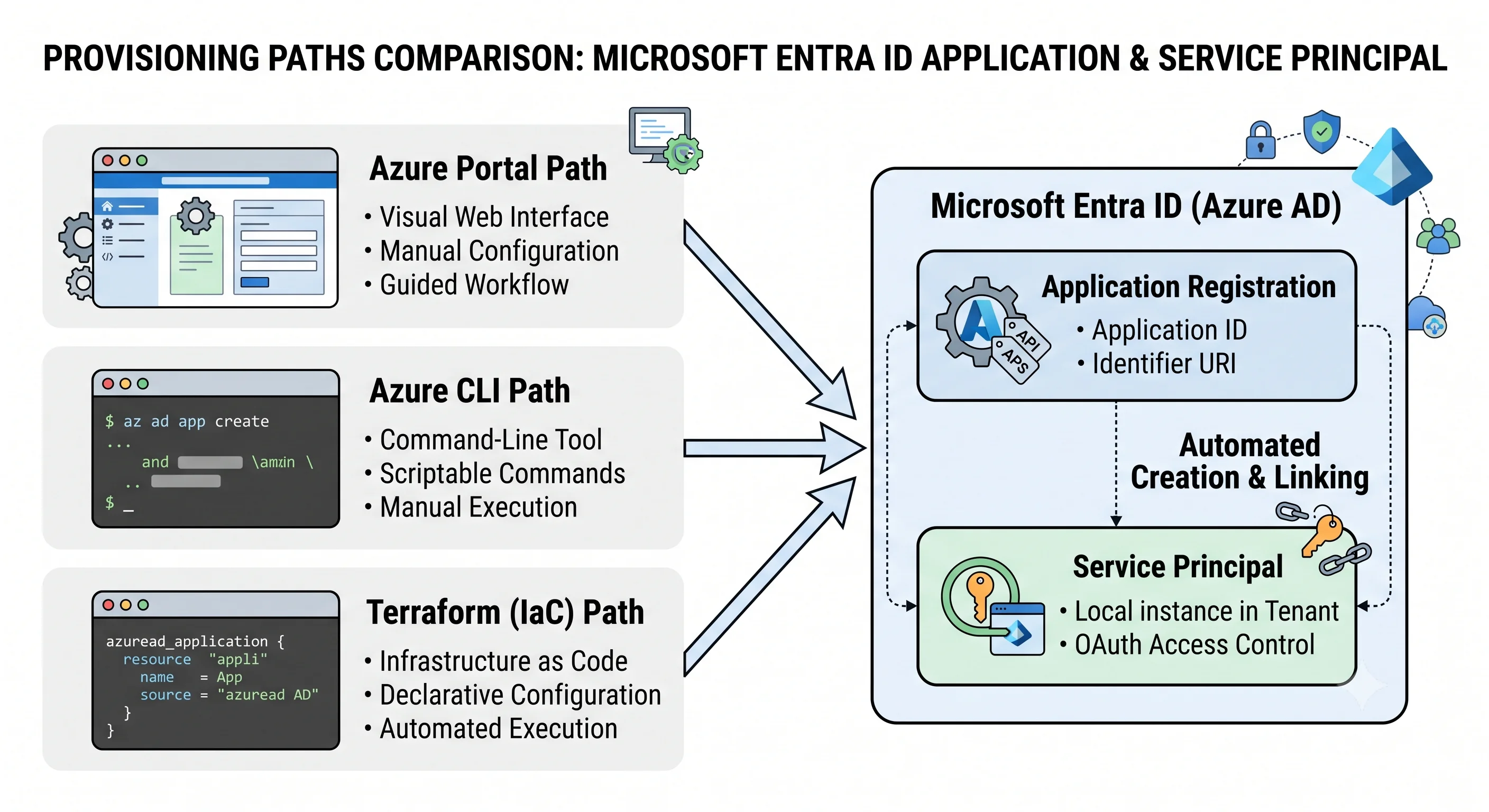
Step 0 — a throwaway resource group and something to grant access to
Everything Azure-side goes in one resource group so teardown is a single command. The directory objects will not be in it — they can't be — which is worth noticing as it happens.
az group create -n rg-entra-demo -l uksouth

# something with a data plane worth protecting
az keyvault create \
  -n kv-entrademo-$RANDOM \
  -g rg-entra-demo \
  -l uksouth \
  --enable-rbac-authorization true
--enable-rbac-authorization true matters: it puts the vault's data plane under Azure RBAC
rather than the legacy vault access policy model. Do this on every new vault.
Path 1 — Azure Portal
Short click-paths by blade name, because the portal's navigation changes often.
Register the application
- Open the Microsoft Entra admin centre → App registrations → New registration.
- Name it
demo-entra-app, leave it single-tenant, skip the redirect URI (this is a daemon). - On the Overview blade, copy the Application (client) ID and the Directory (tenant) ID.
- On Certificates & secrets → New client secret, create one and copy the Value
immediately — it is never shown again. (Copying the Secret ID instead of the Value is the
single most common first mistake; it produces
AADSTS7000215.)
Find its service principal
- Go to Enterprise applications and search for
demo-entra-app. - Copy the Object ID shown there. This is not the client ID, and it is what the role assignment needs. Two blades, two GUIDs, one object model — see Core Concepts.
Grant it access to the vault
- Open the key vault → Access control (IAM) → Add role assignment.
- Role Key Vault Secrets User, member type User, group, or service principal, select
demo-entra-app.
Notice what just happened across two systems: the first two steps wrote to Microsoft Graph, the third wrote to Azure Resource Manager.
Path 2 — Azure CLI
The same thing, copy-pasteable. This is the version worth actually running.
# --- directory side (Microsoft Graph) ---

# create the app registration AND its service principal in one command
az ad sp create-for-rbac --name demo-entra-app --skip-assignment
That prints appId, password, and tenant. Save them — the password is shown once.
APP_ID="<appId from above>"
TENANT_ID="<tenant from above>"
CLIENT_SECRET="<password from above>"

# the service principal's OBJECT id — different from the app (client) id
SP_OBJECT_ID=$(az ad sp show --id "$APP_ID" --query id -o tsv)
echo "client id : $APP_ID"
echo "object id : $SP_OBJECT_ID"

# --- resource side (Azure Resource Manager) ---

KV_NAME=$(az keyvault list -g rg-entra-demo --query "[0].name" -o tsv)
KV_ID=$(az keyvault show -n "$KV_NAME" -g rg-entra-demo --query id -o tsv)

az role assignment create \
  --assignee-object-id "$SP_OBJECT_ID" \
  --assignee-principal-type ServicePrincipal \
  --role "Key Vault Secrets User" \
  --scope "$KV_ID"
Use --assignee-object-id with an explicit --assignee-principal-type rather than --assignee.
The friendly form makes a directory lookup that fails intermittently for freshly-created principals
— the replication lag from Architecture, meeting you on day one.
Prove it works. Put a secret in as yourself, then read it as the application:
# grant yourself data-plane access first — being subscription Owner is NOT enough
MY_OID=$(az ad signed-in-user show --query id -o tsv)
az role assignment create \
  --assignee-object-id "$MY_OID" --assignee-principal-type User \
  --role "Key Vault Secrets Officer" --scope "$KV_ID"

az keyvault secret set --vault-name "$KV_NAME" -n demo-secret --value "it-works"

# now sign in AS the application
az login --service-principal \
  -u "$APP_ID" -p "$CLIENT_SECRET" --tenant "$TENANT_ID"

az keyvault secret show --vault-name "$KV_NAME" -n demo-secret --query value -o tsv
# -> it-works
That "grant yourself data-plane access first" line is the control-plane/data-plane split biting in under sixty seconds. You created the vault, you own the subscription, and you still cannot read the secret until an Azure RBAC data role says so.
Look at the token. This is the most instructive thirty seconds on the page:
az account get-access-token --resource https://vault.azure.net --query accessToken -o tsvPaste it into jwt.ms and read aud, iss, tid, oid, appid, roles, exp. Then request a
token for a different audience and note that they are not interchangeable:
az account get-access-token --resource https://graph.microsoft.com --query accessToken -o tsvTwo valid tokens for the same principal, useless to each other's APIs. That's the aud claim
doing its job, and it explains most mystifying 401s.
Sign back in as yourself before continuing:
az logout && az loginPowerShell equivalent
Entra-heavy shops are frequently PowerShell-first, so this one earns its place. Note that the old
AzureAD and MSOnline modules are retired — Microsoft Graph PowerShell is the current path.
Connect-MgGraph -Scopes "Application.ReadWrite.All"

$app = New-MgApplication -DisplayName "demo-entra-app"
$sp  = New-MgServicePrincipal -AppId $app.AppId

$app.AppId   # client id
$sp.Id       # object id — the one the role assignment wants

# resource side uses the Az module, not Graph
Connect-AzAccount
New-AzRoleAssignment `
  -ObjectId $sp.Id `
  -RoleDefinitionName "Key Vault Secrets User" `
  -Scope (Get-AzKeyVault -ResourceGroupName rg-entra-demo).ResourceId
Two modules for one task, because two systems. The vocabulary is consistent once you stop expecting them to be one thing.
Path 3 — Terraform, minimally
Entra ID needs the azuread provider. azurerm cannot create directory objects — the
structural fact from What & Why, now as a line of HCL. Both providers are
configured here because the role assignment lives in ARM.
terraform {
  required_providers {
    azuread = { source = "hashicorp/azuread" }
    azurerm = { source = "hashicorp/azurerm" }
  }
}

provider "azuread" {}

provider "azurerm" {
  features {}
}

data "azuread_client_config" "current" {}

# --- directory objects ---

resource "azuread_application" "demo" {
  display_name = "demo-entra-app"
  owners       = [data.azuread_client_config.current.object_id]
}

resource "azuread_service_principal" "demo" {
  client_id = azuread_application.demo.client_id
  owners    = [data.azuread_client_config.current.object_id]
}

resource "azuread_application_password" "demo" {
  application_id = azuread_application.demo.id
  display_name   = "demo-secret"
  end_date_relative = "168h" # a week; this is a throwaway
}

# --- Azure resources ---

resource "azurerm_resource_group" "demo" {
  name     = "rg-entra-demo-tf"
  location = "uksouth"
}

resource "azurerm_key_vault" "demo" {
  name                      = "kv-entrademotf"
  resource_group_name       = azurerm_resource_group.demo.name
  location                  = azurerm_resource_group.demo.location
  tenant_id                 = data.azuread_client_config.current.tenant_id
  sku_name                  = "standard"
  enable_rbac_authorization = true
}

resource "azurerm_role_assignment" "demo" {
  scope                = azurerm_key_vault.demo.id
  role_definition_name = "Key Vault Secrets User"
  principal_id         = azuread_service_principal.demo.object_id
}

output "client_id" { value = azuread_application.demo.client_id }
output "object_id" { value = azuread_service_principal.demo.object_id }

output "client_secret" {
  value     = azuread_application_password.demo.value
  sensitive = true
}
terraform init
terraform plan
terraform applyThree things worth noticing in that file, because each one is a real gotcha:
- Two providers, one apply. Terraform is talking to Microsoft Graph and to ARM in the same
run. That's the correct shape and it's why the
azureadprovider exists at all. client_idvs.object_idappear as separate outputs. They are different GUIDs for different purposes.azurerm_role_assignment.principal_idwants the object ID.azuread_application_password.valuelands in state in plaintext. Marking the outputsensitivehides it from the console, not from the state file. This is the argument for federated credentials over secrets, made by the tool itself — see Deployment.
The thing you should not do
Nothing on this page used a certificate or a federated credential, and the CLI path pasted a client secret onto the command line, where it lands in shell history. That is fine for a demo you delete in ten minutes and unacceptable anywhere else. If you take one habit from this page, make it the opposite one: inside Azure, use a managed identity; outside Azure, use workload identity federation; use a secret only when neither is possible, and give it a short expiry.
Teardown
Directory objects and Azure resources are deleted separately — one more reminder that they live in different systems.
# terraform path
terraform destroy

# manual path — Azure resources
az group delete -n rg-entra-demo --yes --no-wait

# manual path — directory objects (NOT covered by the resource group delete)
az ad app delete --id "$APP_ID"
Two footnotes on teardown that matter later:
- Deleting the application deletes its service principal. Deleting the service principal alone leaves the registration behind, which is how orphaned registrations accumulate.
- Deleted applications and users go to a soft-deleted state for a retention window (~30 days
⚠️ verify current retention) and are restorable.
az ad app list --show-minewon't show them; the Deleted applications blade will. They still consume directory quota. - Role assignments are not cleaned up. Deleting the principal leaves an assignment pointing at a GUID that no longer resolves — it shows as "Identity not found" in the portal. Deleting the resource group removes the ones scoped inside it; anything you scoped higher survives.
Confirm you're clean:
az group list -o table
az ad app list --display-name demo-entra-app -o table
Next: the same objects, but parameterised, version-controlled, credential-free, and shippable.
Next: Deployment →
← Back to the Microsoft Entra ID overview · ← Previous: Architecture