
7. Production
The difference between "I made it work in the portal" and "I run this at scale." Five pillars, and for VMs the first one — security — carries more weight than for any other service in this article, because you own the guest.
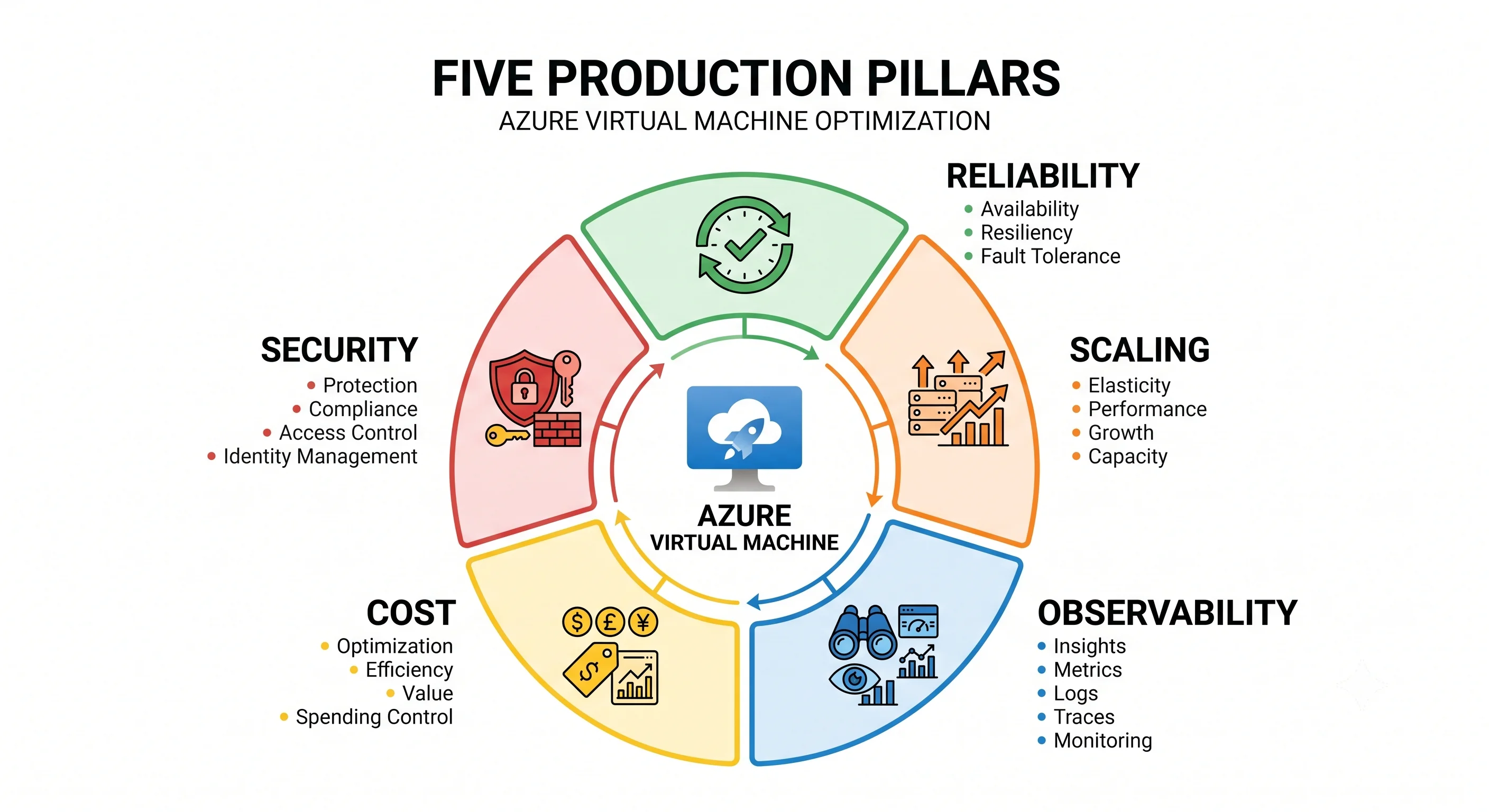
Security
Least privilege on the control plane
Start from the sentence in Architecture, because it governs everything else:
Virtual Machine Contributoris remote code execution. Anyone holding it can install an extension or invoke Run Command, and both execute arbitrary code inside the guest as root or SYSTEM — no SSH key, no open port, no guest credential required.
The built-in roles and what they actually mean:
| Role | Grants | Reality check |
|---|---|---|
Virtual Machine Contributor |
Manage VMs, disks, extensions, Run Command | Full control of the guest, in practice. Scope to a resource group, never a subscription |
Virtual Machine Administrator Login |
Sign in with root/Administrator via Entra login | The auditable replacement for a shared SSH key |
Virtual Machine User Login |
Sign in as a standard user | Grant this by default; escalate through PIM |
Reader |
See the resource | Cannot start, stop, or connect — safe for dashboards |
Contributor / Owner |
Everything, including RBAC for Owner | Almost never the right answer on a VM resource group |
Where the built-in roles are too broad, write a custom role. The common case is an operations team that needs to restart VMs but must not be able to change them or run code in them:
{
  "Name": "VM Operator - Restart Only",
  "IsCustom": true,
  "Description": "Start, stop, and restart VMs. No extensions, no Run Command, no config changes.",
  "Actions": [
    "Microsoft.Compute/virtualMachines/read",
    "Microsoft.Compute/virtualMachines/start/action",
    "Microsoft.Compute/virtualMachines/restart/action",
    "Microsoft.Compute/virtualMachines/deallocate/action",
    "Microsoft.Insights/metrics/read"
  ],
  "NotActions": [],
  "AssignableScopes": ["/subscriptions/<sub-id>/resourceGroups/rg-app-prod"]
}
The omissions are the point: no .../extensions/write, no .../runCommand/action, no
.../write. Without those three, the role is genuinely operational rather than administrative.
Keys, credentials, and what should not exist
- No passwords.
disable_password_authentication = trueon every Linux VM. On Windows, prefer Entra login and domain join over local accounts. - No shared SSH keys. One key in a password manager is unrevokable and survives offboarding. Use Entra login + Bastion (see Integrations).
- No connection strings or storage keys. Managed identity, always. If a config file contains a secret, that's a finding, not a design.
- No inbound 22 or 3389 from the internet. Not "restricted to the office IP" — none. Bastion, or Run Command, or a VPN. An exposed RDP port is compromised in hours, not days, by automated scanning, and it is the single most common initial access vector into Azure subscriptions.
- Just-in-time VM access (Defender for Cloud) if you genuinely cannot deploy Bastion: it opens the port on request, for a limited time, for a specific source IP, with an audit trail.
Encryption
Four separate mechanisms, routinely conflated:
| Mechanism | What it protects | Recommendation |
|---|---|---|
| SSE with platform-managed keys | Managed disks at rest | Always on, free, nothing to do |
| SSE with customer-managed keys | Same, but you hold the key in Key Vault via a Disk Encryption Set | Use where compliance requires key custody and revocation |
| Encryption at host | The temp disk, the host cache, and data in transit between host and storage | Turn this on. It covers the gaps SSE alone doesn't, at no cost |
| Azure Disk Encryption (ADE) | In-guest BitLocker / dm-crypt | The older approach. Prefer SSE + CMK + encryption at host unless you specifically need in-guest encryption |
Confidential computing (DCasv5/ECasv5 sizes with AMD SEV-SNP) goes further and encrypts memory in use, so even the hypervisor cannot read it. Reach for it when the threat model includes the cloud provider itself — regulated data, multi-party computation.
Network isolation
The posture worth defaulting to:
- No public IP on the VM. Ingress through Application Gateway or Front Door; egress through a NAT Gateway.
- NSGs on the subnet, with the NIC-level NSG reserved for genuine exceptions. Two NSGs in the path is the leading cause of "the rule is right but it doesn't work" — use Network Watcher's effective security rules view, which shows the combined result.
- Application Security Groups so rules read
asg-web → asg-app:8080instead of a list of CIDRs that nobody dares change. - Private endpoints for PaaS dependencies, with the matching private DNS zone linked to the VNet.
- Azure Firewall for egress filtering where you need FQDN-based rules — a VM that can reach arbitrary internet hosts is a data-exfiltration path.
The guest — the part Azure will not do for you
- Patching. Nothing patches your guest by default. Enable Azure Update Manager with maintenance configurations, and monitor assessment compliance. This is the item most likely to be quietly unowned.
- Trusted Launch. Secure boot + vTPM, free, on by default for new Gen2 VMs. Turning it off should require a written reason.
- Microsoft Defender for Servers. Endpoint detection, vulnerability assessment, file integrity monitoring, and just-in-time access. It costs per server per month and is worth it for anything internet-adjacent.
- A hardened base image. Build a golden image with a CIS baseline applied, publish it to an Azure Compute Gallery, and deploy from a pinned version. This turns hardening from a recurring task into a build step.
Cost
What you actually pay for
Five meters, and only one of them stops when you shut the machine down:
| Meter | Billed on | Stops when |
|---|---|---|
| Compute | Per second, while the VM is allocated | You deallocate — not when the guest shuts down |
| Managed disks | Provisioned GiB per month, per disk | The disk is deleted. Not when the VM stops. Not when the VM is deleted, if the disk is orphaned |
| Public IP | Per hour, Standard SKU | The IP resource is deleted — including when it's attached to nothing |
| Egress | Per GB out of the region | — |
| OS licence | Included in the Windows/RHEL/SLES hourly rate | You apply Azure Hybrid Benefit |
The cost traps, in order of how much money they waste
1. Stopped but not deallocated. The biggest and most common. az vm stop, a shutdown -h now
inside the guest, or a Windows shutdown all leave the VM allocated and fully billed for compute.
Only az vm deallocate (or the portal's Stop button, which does deallocate) releases it.
# Find VMs that are stopped but still billing
az vm list -d --query "[?powerState=='VM stopped'].{name:name, rg:resourceGroup, state:powerState}" -o table
If that list is non-empty, you're paying for nothing. Note the asymmetry that causes it:
Stop-AzVM in PowerShell deallocates by default, az vm stop does not, and the portal button does.
Three tools, two behaviours.
2. Orphaned disks. Delete a VM without the delete options set and the OS disk, data disks, and NIC survive. Disks bill on provisioned size, forever, and appear on no dashboard.
az disk list --query "[?diskState=='Unattached'].{name:name, rg:resourceGroup, gb:diskSizeGb, sku:sku.name}" -o table3. Oversized VMs. The default is to size for a peak that never arrives. Azure Advisor issues right-sizing recommendations based on actual utilisation — they're usually correct and usually ignored. A generation upgrade (v3 → v5) is often faster and cheaper for the same nominal size.
4. Windows licences paid twice. Azure Hybrid Benefit lets you apply existing Windows Server or SQL Server licences with Software Assurance, cutting the VM rate substantially. It's a checkbox that is routinely left off. Same mechanism exists for RHEL and SLES.
5. Dev environments running at night and at weekends. A dev VM used 40 hours a week and allocated 168 is 76% waste. Auto-shutdown (a per-VM schedule, free) or an Automation runbook fixes it in five minutes.
az vm auto-shutdown -g rg-app-dev -n vm-dev-01 --time 1900 --email you@example.com6. Premium disks bought for capacity. Premium SSD performance is tied to size tier, so people over-provision capacity to get IOPS. Premium SSD v2 decouples them and is often cheaper for the same performance. Worth checking on any large Premium SSD estate.
The optimisations that actually move the number
| Lever | Typical saving | Commitment |
|---|---|---|
| Reservations (1 or 3 year, specific size + region) | Large | Locked to a size family and region; exchangeable with limits |
| Azure savings plan for compute | Slightly less than reservations | Hourly spend commitment, flexible across sizes and regions — usually the better choice unless the workload is genuinely fixed |
| Spot VMs | Very large | Evictable with ~30 seconds' notice. Only for interruptible work |
| Azure Hybrid Benefit | Large on Windows/SQL | Requires existing licences with Software Assurance |
| Auto-shutdown on dev/test | Proportional to idle hours | None. Do this today |
| Right-sizing + newer generation | Moderate, compounding | A restart |
| Dev/Test subscription pricing | Moderate | Requires an eligible Visual Studio subscription; non-production use only |
⚠️ Percentages vary by region, size, and term — verify against current Azure pricing rather than any figure quoted from memory.
The decision worth stating plainly: reservations and savings plans are the largest lever for a steady VM estate, and the choice between them is flexibility versus a few extra percent. For most teams, a savings plan is the right default because it survives resizing and re-architecture; a reservation is right when you know the size and region won't change for three years.
Scaling and limits
The quota question, and its scopes
This is the Azure-specific bit that catches AWS engineers, because a number without a scope is useless here:
| Limit | Counted at | Notes |
|---|---|---|
| Total regional vCPUs | Subscription, per region | The one that stops autoscale silently |
Per-family vCPUs (e.g. Standard_DSv5 family) |
Subscription, per region | Separate from the total; both must have room. GPU families are often zero by default |
| Spot vCPUs | Subscription, per region | A separate quota again |
| VMs per availability set | Per availability set | — |
| Instances per scale set | Per scale set, and higher for Uniform than Flexible | — |
| Managed disks | Effectively per subscription per region | — |
| Resources per resource group | Per resource group | Rarely hit, but real |
| Private IPs per VNet | Per VNet | Plan address space accordingly |
⚠️ Every one of these varies by region and subscription type — verify the current numbers against current Azure docs. The scopes are stable; the numbers are not.
az vm list-usage --location uksouth -o table \
  --query "[?currentValue > \`0\`].{name:localName, used:currentValue, limit:limit}"

# Raise it — usually fast and self-service for common families
az quota update --resource-name standardDSv5Family \
  --scope "/subscriptions/$SUB/providers/Microsoft.Compute/locations/uksouth" \
  --limit-object value=200
Quota is not capacity. Quota is an accounting limit on your subscription; an allocation failure means Azure physically doesn't have that hardware in that region or zone right now. The errors read similarly and the fixes are completely different — a quota increase won't help an allocation failure, and trying a different zone or size won't help a quota problem.
Autoscale that works
az monitor autoscale create \
  -g rg-app-prod --resource "$VMSS_ID" \
  --name autoscale-app --min-count 3 --max-count 20 --count 3

az monitor autoscale rule create \
  -g rg-app-prod --autoscale-name autoscale-app \
  --condition "Percentage CPU > 70 avg 5m" --scale out 2

az monitor autoscale rule create \
  -g rg-app-prod --autoscale-name autoscale-app \
  --condition "Percentage CPU < 30 avg 10m" --scale in 1
Four rules of thumb behind those numbers:
- Scale out fast, scale in slow. Aggressive scale-in causes flapping; the asymmetric windows (5 minutes out, 10 minutes in) and asymmetric step sizes (2 out, 1 in) are deliberate.
- Set the floor high enough to absorb a spike. Metrics lag by minutes and boot takes minutes. Autoscale reacts to trends, not spikes — the floor handles the spike.
- Check the quota headroom against the maximum. A max of 20 with quota for 12 means the system silently stops at 12, and there is no alert for it unless you build one.
- Handle termination. Enable the scale-set termination notification and drain connections, or scale-in drops live requests.
Observability
Nothing is on by default
The single most important sentence in this section: a new VM emits host-level metrics only. CPU, disk IOPS, network bytes, as seen from the hypervisor. No memory usage, no disk free space, no syslog, no application logs — because Azure cannot see inside your guest. Every one of those requires the Azure Monitor Agent and a Data Collection Rule (see Integrations).
Two things to turn on before anything else:
- Boot diagnostics. Serial console output and a screenshot. When the guest won't boot this is the only diagnostic available, and enabling it after the failure is too late. It's free.
- A diagnostic setting on the VM routing platform metrics and the activity log to a Log Analytics workspace, so you have history rather than the metrics blade's short retention.
Metrics worth alerting on
| Metric | Why | A sensible starting threshold |
|---|---|---|
| Percentage CPU | The obvious one; also the autoscale trigger | > 80% for 15 min |
| Available Memory Bytes | Requires the agent. The most common cause of a wedged guest | < 10% of total for 10 min |
| OS Disk / Data Disk IOPS Consumed Percentage | You're hitting the disk's ceiling | > 90% for 15 min |
| VM Cached / Uncached IOPS Consumed Percentage | You're hitting the VM size's ceiling — a different fix | > 90% for 15 min |
| Disk free space (agent-collected) | Full disks wedge guests, silently | < 15% |
| Network In/Out Total | Baseline deviation, exfiltration signal | Baseline-relative |
| VM Availability Metric | Platform's view of whether the VM is up | < 1 |
The pair worth understanding properly is Data Disk IOPS Consumed Percentage versus VM Uncached IOPS Consumed Percentage. The first says the disk SKU is the constraint — buy a bigger or faster disk. The second says the VM size is the constraint — a bigger disk changes nothing and you need a bigger VM. Every "the storage is slow" investigation should start by comparing those two.
The KQL queries you'll actually run
// Which VMs are near their CPU ceiling, last hour
InsightsMetrics
| where TimeGenerated > ago(1h) and Namespace == "Processor" and Name == "UtilizationPercentage"
| summarize avg_cpu = avg(Val), max_cpu = max(Val) by Computer
| where avg_cpu > 70
| order by avg_cpu desc
// Disks about to fill — the classic 3 a.m. page, findable at 3 p.m.
InsightsMetrics
| where TimeGenerated > ago(30m) and Name == "FreeSpacePercentage"
| summarize FreePct = avg(Val) by Computer, Disk = tostring(todynamic(Tags)["vm.azm.ms/mountId"])
| where FreePct < 15
| order by FreePct asc// Who restarted, resized, or ran a command on a VM — the drift and audit question
AzureActivity
| where TimeGenerated > ago(7d)
| where OperationNameValue has "Microsoft.Compute/virtualMachines"
| where OperationNameValue has_any ("write", "restart", "deallocate", "runCommand", "extensions")
| project TimeGenerated, Caller, OperationNameValue, ActivityStatusValue, _ResourceId
| order by TimeGenerated desc// Failed SSH authentication attempts (Linux, syslog collected via DCR)
Syslog
| where TimeGenerated > ago(24h) and Facility == "auth"
| where SyslogMessage has "Failed password" or SyslogMessage has "Invalid user"
| summarize attempts = count() by Computer, bin(TimeGenerated, 1h)
| where attempts > 20The third query is the one to keep bookmarked. It answers "who changed this and when", which is the
first question in almost every VM incident and the one terraform plan cannot answer.
VM Insights packages the agent, the DCR, a curated performance workbook, and a dependency map showing which processes talk to which hosts. For most teams it's the right starting point, and the dependency map is genuinely invaluable during a migration when nobody remembers what calls what.
Reliability
Choosing the resilience posture
The decision, in one table:
| Configuration | Protects against | Costs |
|---|---|---|
| Single VM, standard disks | Nothing. No VM SLA at all | Least |
| Single VM, premium/ultra disks | Host failure, via automatic restart elsewhere | Premium disk price |
| Availability set (2+ VMs) | Rack failure, host maintenance batches | Nothing extra — but no protection from a datacentre outage |
| Availability zones (2+ VMs across zones) | Datacentre failure | Inter-zone data transfer charges |
| Multi-region (Site Recovery or active/active) | Regional outage | Roughly double, plus replication |
⚠️ SLA percentages move; verify against current Azure docs. The structure is what matters: zones are strictly stronger than availability sets where zones are available, and a single VM on standard disks has no availability commitment whatsoever — which regularly surprises people who chose Standard SSD to save money on a production box.
A VM cannot be in both an availability set and a zone, and neither can be changed after creation. Getting this wrong means rebuilding the VM, which is why it belongs in the design conversation rather than the deployment one.
Backup is not replication
Managed disks are triple-replicated within the region. That protects against hardware failure and
nothing else — it replicates your rm -rf faithfully and instantly, and it replicates ransomware
encryption just as faithfully.
Azure Backup is the answer: a Recovery Services vault, a policy defining schedule and retention, application-consistent snapshots (via VSS on Windows, pre/post scripts on Linux), and cross-region restore where the vault is geo-redundant. Enable soft delete on the vault so a compromised admin account can't delete the backups — that's a specific ransomware mitigation, not a generic best practice.
The restore drill. An untested backup is a belief, not a capability. Restore a production VM into an isolated resource group quarterly, boot it, verify the application starts and the data is intact, and time the whole thing. The number you get is your real RTO, and it is usually several times the number in the DR document.
Disaster recovery
Azure Site Recovery replicates VMs to a secondary region continuously, with recovery plans that sequence the failover — network first, then databases, then application tiers, with scripts between the steps. It supports non-disruptive test failover into an isolated network, which is the feature that makes DR plans real rather than aspirational.
Paired regions matter for planned maintenance sequencing and for some services' geo-redundant storage, though Azure has been moving toward letting you choose any region pair. ⚠️ Verify the current guidance against current Azure docs.
The honest framing: DR for VMs is a business decision expressed as two numbers. RTO (how long until we're back) and RPO (how much data can we lose). Backup alone gives you an RTO in hours and an RPO of up to a day. Site Recovery gives you minutes for both. Active/active across regions gives you near-zero and costs roughly double. Pick deliberately and write it down — the failure mode is having no stated number, and discovering during the outage that everyone assumed a different one.
Next: Interview Questions →
← Back to the Virtual Machines overview · ← Previous: Integrations